
Thanks to its intuitive design, we have eliminated all unnecessary complexity. Your path to a Tabata workout is extremely simple and fast. With just a few clicks to select exercises and set their intensity, you can immediately start your highly effective four-minute Tabata workout.
The application is designed to guide you step by step through the entire process—from workout planning to final evaluation. Everything is clear, visual, and focused on what matters most: precise timing and effective training.
Application Overview
The Tabata Timer Application is divided into several logical windows that follow the natural flow of a workout:
Exercise Selection
Advertising Window
Training Control Center (Timer)
Final Evaluation and PDF Output
Each window has a clear purpose and helps the user focus on a single step at a time.

First Window – Exercise Selection
The first window is used to create your Tabata workout.
Visual Exercise Selection
This is not just a simple text list of exercises. A major advantage of the application is that each exercise is displayed visually, so you always know exactly what to expect.
- Each exercise includes a visual preview
- Targeted muscle groups are clearly marked
- More than 30 exercises, mostly bodyweight-based
This makes the selection process fast, intuitive, and suitable even for beginners.
Exercise Filtering and Intensity
Each exercise has a predefined intensity, allowing you to precisely control the difficulty of your workout.
Exercises can be filtered by:
- Training intensity
- Cardio or strength focus
- Targeted body part
- Bodyweight exercises or exercises with equipment
Load Chart – Strength & Cardio Chart
Selected exercises are automatically displayed in a clear chart showing how your four-minute Tabata workout will be loaded over time.
Intensity distribution throughout the workout
Average cardio intensity
Average strength intensity
Thanks to these values, you can instantly see whether the workout is more cardio-focused or strength-focused. This also helps you compare different Tabata sessions and gradually increase or decrease workout difficulty.
Once your selection is complete, simply click Start Tabata to enter the main training environment.
At the bottom of the page, you will find:
About – service information about the application, contact details, description, disclaimer, and app version
Home – a link to the website TabataWorkout.online
Second Window –Advertising
Between exercise selection and the Training Control Center, a video advertising window is displayed.
At this stage, a promotional message appears. Thanks to this model, the Tabata Timer Application is completely free to use. Advertising allows us to cover operating costs and continue developing the application.
Advertising Philosophy
Advertisers do not buy banners. They buy access to a highly motivated and engaged user at the moment when focus is at its peak—during workout planning or just before reviewing results in PDF form.
Our motto:
“Get theattentionof our users where their motivation is at its highest.”
Interested in advertising in this premium placement?
Contact us at: ads@tabataworkout.online
Third Window – Timer (Training Control Center)
This is the core environment of the entire application, where the actual workout takes place.
Top Section – Selected Exercises
At the top of the screen, you see all exercises selected for your workout.
The current exercise is highlighted with a red frame
You always have a clear overview of workout progress
Center of the Screen – Interval Timer
In the center of the screen, time is visually displayed for:
Workout intervals
Rest intervals
The timer is clear and allows you to fully focus on exercising.
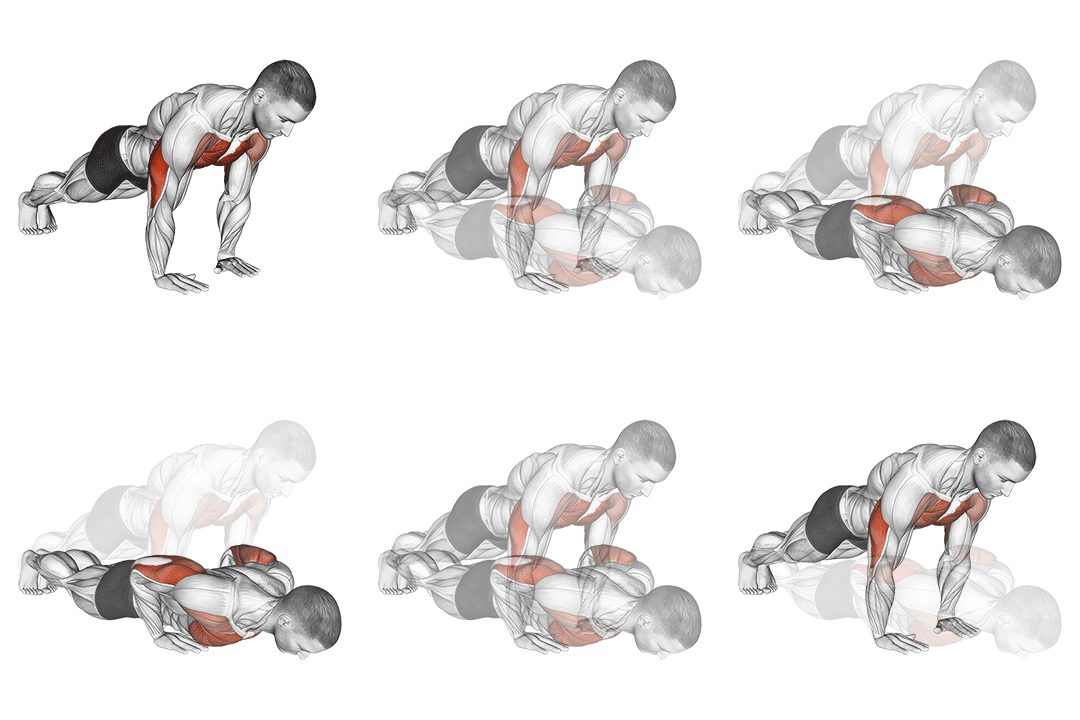
Side Sections – Current Exercise
On the sides of the screen, the exercise you are currently performing is displayed, including its visual representation.
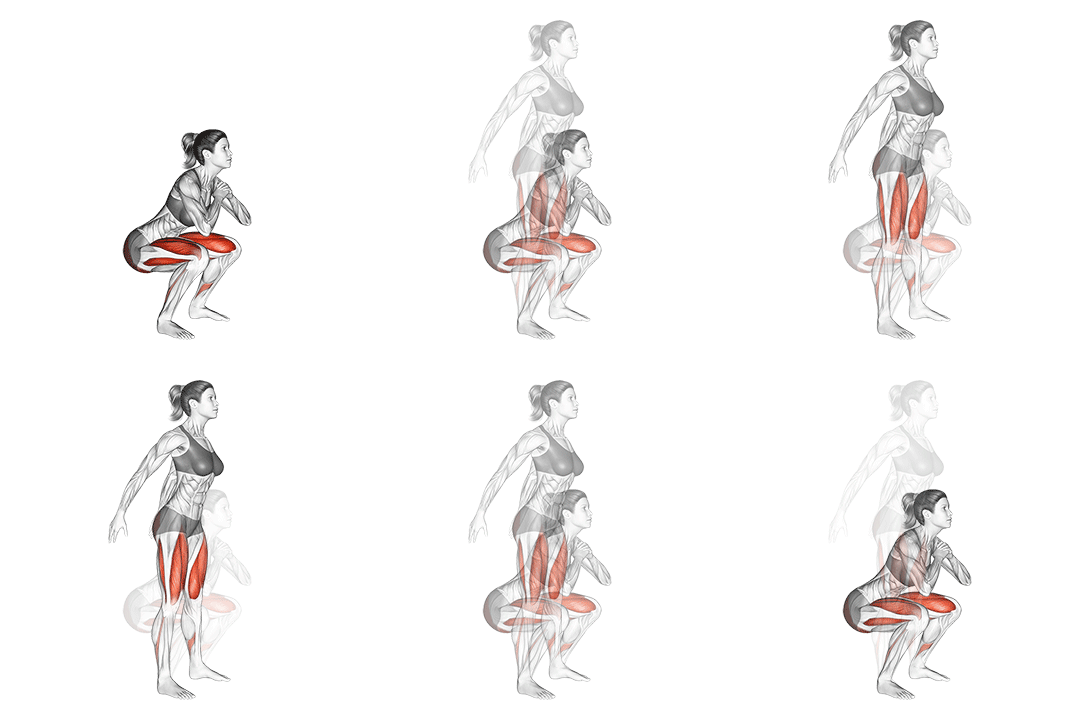
Bottom Section – Training Controls
At the bottom, you will find the following controls:
- Enter number of Tabata sets: Set how many times you want to repeat the selected Tabata workout.
- Start: Starts the Tabata workout. The same button can also pause the training.
- Reset: Restarts the workout from the beginning.
- Mute: Each interval is indicated visually and acoustically. If you don’t want or can’t use sound, you can mute it and turn it back on at any time.
- Fullscreen: For the best user experience, we recommend using fullscreen mode. Browser menus are hidden, or you can use the F11 key.Note. Fullscreen mode is not available on mobile phones.
- Back to Exercise Selection
- Returns you to the exercise selection screen.
Final Window – Workout Evaluation
After completing the workout, you are taken to the final evaluation window.
Workout Overview
Here you will find a complete overview of all exercises you performed during the workout.
Personal Notes
You can add personal notes about your training:
- How you felt during the workout
- Your energy level
- Subjective workout difficulty
Bottom Menu
- Download result as PDF: We do not store your results. Your workout is anonymous. If you want to archive your training, you can download a PDF summary.
- Start next Tabata: Redirects you back to the application’s main screen.
- Go to TabataWorkout.online: Link to the main website TabataWorkout.online.
- Facebook, Instagram, X: Share your results and experience on social media.
Conclusion
This is a complete description of the Tabata Timer Application with exercise selection. It is a clear and effective tool that guides you step by step toward your goal—from planning to workout evaluation.
Want to learn more about the Tabata Timer web app? Find out more information here: